Character Visual Mode
v — select first, act second.
v enters character-wise Visual mode. Move to extend the selection. Press an operator (d, c, y, …) to act on it.
Visual mode flips the grammar around. Instead of "verb then noun" (dw), you do "noun then verb": select first, then act. v starts the selection, motions extend it, and an operator finishes the job.
| Key | Note |
|---|---|
| v |
| Key | Note |
|---|---|
| v | |
| w | |
| w | |
| d |
| Key | Note |
|---|---|
| o |
Reference
| Key | Action |
|---|---|
| v | Enter character-wise Visual |
| o | Swap cursor and anchor |
| Esc | Leave Visual without acting |
| gv | Re-select last visual range |
| `<, `> | Marks for selection start/end |
Worked example — v and motion
Character-wise visual selection.
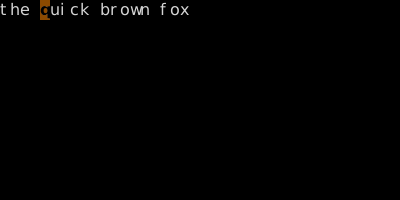
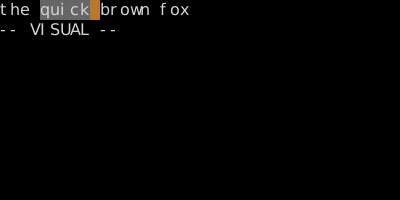
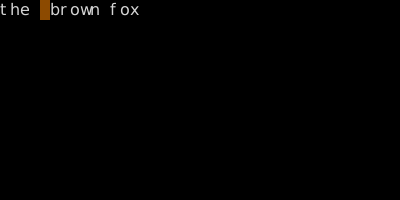
Visual mode picks a range first, then you apply an operator. Useful when the right motion is hard to compose.
See also: Line and Block Visual, Visual Mode Tricks, The Three Visual Modes, Swap and Adjust Endpoints